How to Embed Interactive Maps in No-Code Apps
Before you dive into embedding interactive maps in your Adalo app, make sure you have an active Adalo subscription and a Google Cloud account with billing enabled. Adalo is a no-code app builder for database-driven web apps and native iOS and Android apps—one version across all three platforms, published to the Apple App Store and Google Play.
- Set Up Google Cloud APIs: Enable APIs like Maps JavaScript, Geocoding, and Places. Generate an API key and secure it with restrictions.
- Install Adalo's Map Component: Add the Google Maps component from the Adalo Marketplace to your app.
- Configure Your Database: Use Adalo's "Location" property to store coordinates, enabling dynamic markers and location-based features.
- Add Features: Enable "My Location", calculate distances, and filter markers based on user inputs.
- Customize Maps: Use JSON styling for personalized designs and ensure maps align with your app's branding.
Testing is crucial—preview your app and test on devices before publishing. Adalo's single-codebase system ensures your map works across iOS, Android, and web platforms. With Google's $250/monthly credit for Maps APIs, most small apps incur no additional costs.
Interactive maps enhance functionality and usability, and with Adalo's AI-assisted platform, you can integrate them without coding expertise.
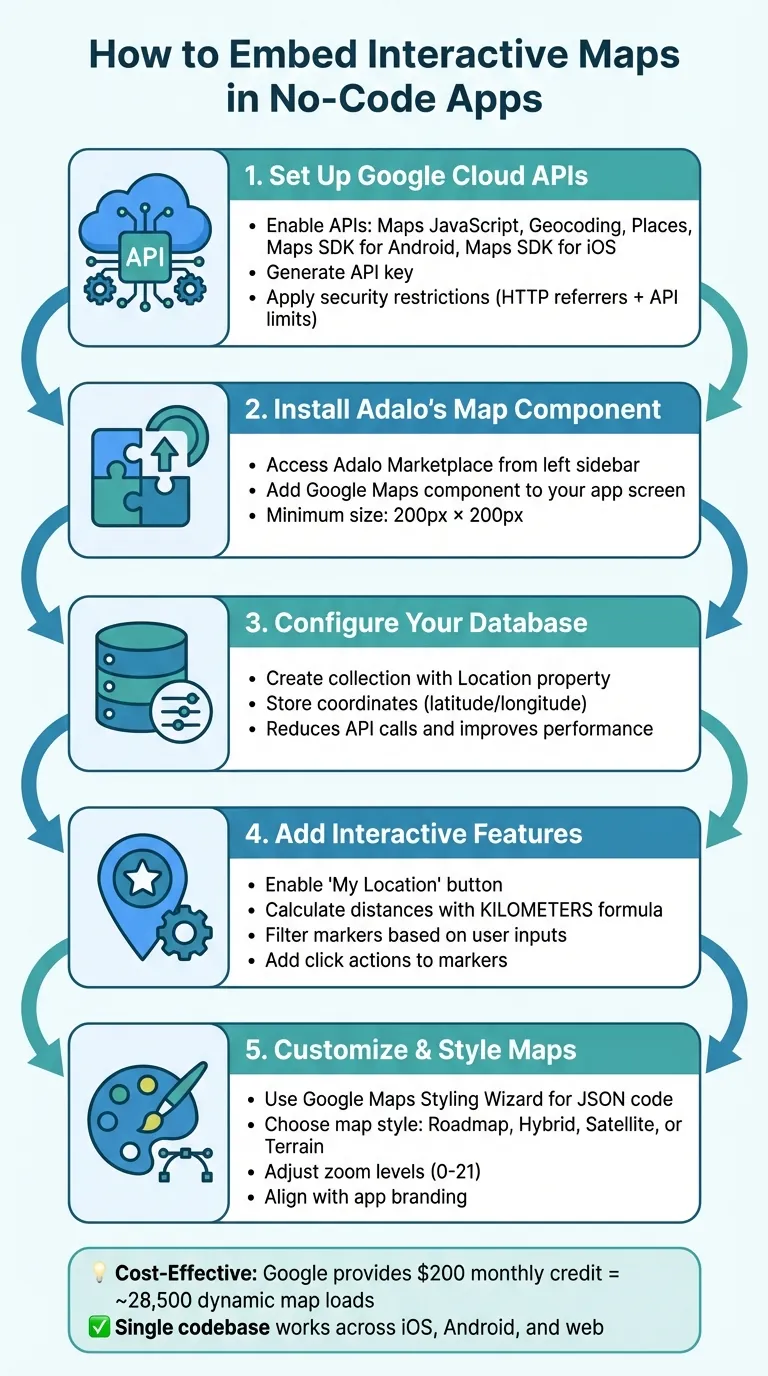
5-Step Process to Embed Interactive Maps in No-Code Apps with Adalo
Prerequisites for Embedding Interactive Maps
Before you dive into embedding interactive maps in your Adalo app, make sure you have an active Adalo subscription and a Google Cloud account with billing enabled.
Setting Up Your Adalo App
To access location and map features in Adalo, you'll need to be on a paid plan. Once your subscription is active, head over to the Adalo Marketplace via the left sidebar, install the Google Maps component, and add it to a screen in your app. The visual builder has been described as "as easy as PowerPoint," making component installation straightforward even for first-time users.
Next, prepare your app's database by creating a collection that includes a Location property to store coordinates. This step is important for reducing API calls and ensuring your app runs smoothly. With no data caps on paid plans, you can store thousands of location records without worrying about hitting limits—a significant advantage for apps with extensive location data like store locators or delivery services.
Ada, Adalo's AI builder, lets you describe what you want and generates your app. Magic Start creates complete app foundations from a description, while Magic Add adds features through natural language.
For those looking to accelerate setup, Magic Start can generate complete app foundations from a simple description. Tell it you need a location-based business directory, and it creates your database structure, screens, and user flows automatically—what used to take days of planning happens in minutes.
Getting a Map API Key
To integrate Google Maps with your Adalo app, start by creating a Google Cloud project specifically for your app. Then, enable the following APIs: Maps JavaScript API, Geocoding API, Places API, Maps SDK for Android, and Maps SDK for iOS. Enabling the mobile SDKs upfront can save you from potential issues when publishing your app to the Apple App Store or Google Play Store.
Google requires a valid billing method for API usage, but you'll also receive usage credits to offset some costs.
Next, generate your API key in the "Credentials" section of the Google Cloud Console. Once you have the key, paste it into Adalo under App Settings > API Keys.
To protect your API key, apply security restrictions. Limit its use to your app's domains using HTTP referrers, and restrict it to the specific Maps APIs you've enabled. This step is essential to safeguard your app and manage costs effectively. Unlike platforms with usage-based charges that can lead to bill shock, Adalo's paid plans include unlimited usage—so your only variable cost consideration is the Google Maps API itself.
With your API key secured and set up, you're ready to embed and customize the map within your Adalo project.
How to Embed Interactive Maps in Adalo
Once you've set up your API and database, the next step is to integrate and configure the map component in your app.
Adding a Map Component
Start by installing the Google Maps component and dragging it onto your app screen. Ensure the component's size is at least 200px by 200px for proper functionality. Adalo's canvas can display up to 400 screens at once, giving you a comprehensive view of how your map integrates with the rest of your app's navigation.
In the settings panel, enter your Google Maps API key. Keep in mind, this key is separate from the one in your App Settings. From there, decide whether you want to display a "Single Marker" (for one specific location) or "Multiple Markers" (to showcase multiple locations from your database). If you choose multiple markers, use Magic Text to bind the collection's location data to the map.
For those who prefer describing what they want rather than configuring settings manually, Magic Add lets you add features from natural language requests. Simply describe the map functionality you need, and the AI assists with implementation.
Customizing Maps with Embedded URLs
Once the component is in place, you can adjust its appearance and functionality. Select a map style—Roadmap, Hybrid, Satellite, or Terrain—from the settings. For more advanced customization, use the Google Maps Styling Wizard to create custom JSON code. Paste this code into the "Custom Style JSON" field in the component settings.
You can also tweak the initial view by adjusting the zoom level (ranging from 0 to 21), centering the map on specific coordinates, and changing the map's language. If you're using a Web View component, you can embed maps with modes like place, view, directions, streetview, or search.
Linking Maps to Adalo Actions
To make your map interactive, link it to app actions. For example, you can attach Click Actions to markers to trigger events like navigating to a "Place Details" screen, opening a bottom sheet, or updating a database record.
If you want to include a "My Location" feature, add a button that updates the Logged In User location property to the "Current Device Location." Don't forget to include a Request Location Permissions action (typically during login) so your app can access the user's GPS coordinates.
While Adalo doesn't offer native turn-by-turn navigation, you can create a workaround by adding a button with a dynamic URL. Use the format:
https://maps.google.com/maps?saddr=[Start Lat],[Start Long]&daddr=[End Lat],[End Long]
Here, Magic Text pulls the start and end coordinates from your database.
You can also filter the markers displayed on the map based on user input. For instance, if you have a dropdown menu for business categories, configure the Multiple Markers collection to show only locations where "Category" matches the selected value. Additionally, to calculate the distance between the user's current location and a specific marker, use the following formula in a text component:
KILOMETERS(Current Device Location Latitude, Current Device Location Longitude, Current Place Location Latitude, Current Place Location Longitude).
Advanced Map Customization Techniques
Take your app's mapping features to the next level with custom styles, dynamic data integration, and geolocation tools for a more tailored user experience.
Styling Maps with JSON Configurations
In Adalo, map customization relies on JSON-based configurations rather than CSS. To create personalized map designs, you can use the Google Maps Styling Wizard, which lets you tweak colors, hide or highlight elements like roads or points of interest, and adjust label sizes to align with your brand identity.
"The Wizard will automatically generate the JSON for you that you can copy and paste into Adalo." - Adalo Help
Once the JSON is ready, paste it into the Custom Style JSON field in your Map component settings. Keep in mind that custom styles won't appear in the Adalo Builder. Instead, preview your app, share a link, or publish it to see the changes in action. For pre-made designs, platforms like Snazzy Maps offer ready-to-use JSON styles. If you're using the Web View component for hybrid app development, you can incorporate standard HTML, CSS, and JavaScript for a web-based map implementation.
After styling, the next step is connecting your map to dynamic data for real-time marker updates.
Connecting Maps to Adalo Databases
To enable dynamic markers, start by creating a collection in your database (e.g., "Places") with a Location property to store coordinates. In the Map component settings, choose Multiple Markers and bind the marker locations using Magic Text. This setup ensures markers update automatically based on your database.
You can also apply filters to control which markers are displayed. For instance, if you have a dropdown menu for business categories, configure the collection to show only the locations that match the selected category. To optimize performance and cut down on API costs, store latitude and longitude coordinates directly in your database rather than relying on text-based addresses.
With unrestricted database storage on paid plans, you can store extensive location datasets without worrying about record limits. This is particularly valuable for apps with thousands of locations—store locators, real estate listings, or delivery tracking systems can scale without hitting artificial ceilings.
For reference, Google Cloud Platform provides a $250/monthly credit for Maps and Location API usage, which supports around 28,500 dynamic map loads per month.
Adding Geolocation Features
After styling and connecting your map to dynamic data, you can boost interactivity by adding geolocation capabilities. Start by triggering a Request Location Permissions action—this is often best done after login or on the home screen. Location updates occur when users interact with the app.
You can further enhance the experience by creating a "My Location" button. Add an icon to your map screen and set its action to update the logged-in user's location. Bind the Current Location property to Current Device Location so the map view refreshes based on the user's position. To show proximity, use the KILOMETERS or MILES formula to calculate straight-line distances between the user and points of interest.
The Location Input Component offers an Autocomplete feature and a "Show current location" toggle, making it easier for users to select or locate their position. For users who deny location permissions, design a fallback screen, as the app cannot re-prompt for permissions. Finally, ensure the Geocoding API, Places API, and Maps JavaScript API are enabled in your Google Cloud Console for geolocation features to function smoothly.
X-Ray, Adalo's performance analysis tool, can help identify any geolocation-related performance issues before they affect users—particularly useful when your app handles frequent location updates or large marker datasets.
Testing and Deploying Your App
Thorough testing is crucial to ensure your app's mapping features work seamlessly before releasing it to users.
Testing Map Functionality
Map features in Adalo's Builder often behave differently than they do in the live app. For instance, custom styles, dynamic data, and actual markers will only appear in the Previewer, shared links, or the published version of your app.
"Note, you won't see the actual markers with the correct addresses in the Builder, but you will see them when you preview, share, or publish your app." - Adalo Help
Testing on physical devices is essential. Use iOS devices to verify permission flows, Android devices to check location accuracy, and ensure Progressive Web Apps (PWAs) are served over HTTPS. It's also wise to design a fallback screen for users who deny location permissions, as iOS won't prompt them again after the initial denial.
Address edge cases like denied permissions or no internet connection. During testing, monitor your Google Cloud Console to track API usage per user and identify potentially expensive operations. To avoid unexpected charges, set up billing alerts when your usage reaches 80% of the free tier threshold.
Following the Adalo 3.0 infrastructure overhaul in late 2025, apps run 3-4x faster than before. This improved performance is particularly noticeable with map-heavy applications that process frequent location updates and marker rendering. The modular infrastructure scales with your app's needs, maintaining performance even as your user base grows.
Once you've confirmed everything works as expected, you're ready to deploy your app across platforms.
Publishing to App Stores or as a PWA
After testing, the next step is deployment. If your app includes embedded maps, you'll need a paid Adalo plan (starting at $36/month) to publish it to the Apple App Store, Google Play Store, or as a PWA on a custom domain. Adalo's single-codebase system ensures that any updates you make are automatically applied across iOS, Android, and web platforms—with unlimited updates to apps once published.
For iOS submissions, you'll need a clear Privacy Policy explaining how location data is used, along with permission descriptions for the App Store review process. Android apps benefit from Adalo's automatic configuration of location manifests. If you're deploying a PWA, make sure your app is served over HTTPS to enable geolocation features, as browsers enforce this requirement.
Before publishing, double-check that the following APIs are enabled in your Google Cloud Console: Maps SDK for iOS, Maps SDK for Android, Maps JavaScript API, Geocoding API, and Places API. For web versions, applying HTTP referrer restrictions to your API keys can help prevent unauthorized use and unexpected charges. Always test on physical devices to confirm that location permissions and map loading function correctly across platforms.
| Platform | Key Requirement | Permission Handling |
|---|---|---|
| iOS App Store | Privacy Policy, Permission Text | Managed via Adalo actions and OS prompts |
| Android Play Store | Maps SDK for Android enabled | Automatically configured by Adalo |
| PWA / Web | HTTPS (required for geolocation) | Browser-level permission prompt |
Thanks to Google's $250/monthly credit, most apps stay within the free tier during their initial launch. After deployment, keep an eye on your Google Cloud Console to monitor API usage patterns, optimize calls, and manage costs effectively.
How Adalo Compares for Map-Based Apps
When building location-based applications, your choice of platform significantly impacts both development speed and long-term scalability. Here's how Adalo stacks up against alternatives for map-heavy apps.
Bubble offers more customization options but comes with trade-offs. Their web and mobile wrapper offering starts at $59/month with usage-based charges and limits on records due to Workload Units. The mobile solution is a wrapper for the web app, which can introduce performance challenges at scale. One app version doesn't automatically update web, Android, and iOS apps deployed to their respective stores—each requires separate management.
FlutterFlow is a low-code (not no-code) option designed for technical users. Users need to set up and manage their own separate database, which requires significant learning complexity. Their builder is limited in view—you can only see 2 screens at once—whereas Adalo can display up to 400 screens simultaneously on one canvas. Pricing starts at $70/month per user for app store publishing, but that still doesn't include a database, which must be sourced, configured, and paid for separately.
Glide excels at spreadsheet-based apps but creates generic, template-restricted applications with limited creative freedom. Pricing starts at $60/month for custom domain apps, but it's still limited by app updates and data record rows. Critically, Glide does not support Apple App Store or Google Play Store publishing—a significant limitation for map apps that need native mobile performance.
Adalo's combination of native iOS and Android compilation, unlimited database records, and single-codebase publishing makes it particularly well-suited for location-based applications that need to scale. Over 3 million apps have been created on the platform, with the infrastructure handling 20 million+ daily requests at 99%+ uptime.
Conclusion
You don't need months of custom development or a massive engineering team to add interactive maps to your app. With Adalo's Map component, a Google Cloud API key, and tools like Magic Text and the Google Maps Styling Wizard, you can create a fully functional mapping interface for web, iOS, and Android—all from a single build.
To get it right, make sure your Google Cloud API is properly configured (enable the necessary APIs) and manage your data efficiently by storing coordinates to reduce API calls. It's also smart to set up billing alerts to keep track of API costs.
Adalo's single-codebase approach simplifies everything. Build your map interface once, and it works everywhere—no need to manually adjust Android manifests or iOS permissions. Plus, any updates to your map's styling, markers, or click actions are automatically applied across all platforms with unlimited updates on paid plans.
Once you've tested everything thoroughly, you're ready to publish your app across platforms without a hitch.
Related Blog Posts
- How to Launch Your First Mobile App Without Coding
- How to Create a Voice To Text Feature For Your App
- How to Build Prototypes in Days with No-Code
- Google Maps SDK for Android: Beginner's Guide
FAQ
Why choose Adalo over other app building solutions?
Adalo is an AI-powered app builder that creates true native iOS and Android apps. Unlike web wrappers, it compiles to native code and publishes directly to both the Apple App Store and Google Play Store from a single codebase—the hardest part of launching an app handled automatically. Paid plans include unlimited database records and no usage-based charges, starting at $36/month.
What's the fastest way to build and publish an app to the App Store?
Adalo's drag-and-drop interface, combined with AI-assisted building features like Magic Start and Magic Add, lets you build apps in days rather than months. The platform handles the App Store submission process, so you can go from idea to published app without managing complex deployment workflows.
Can I easily embed interactive maps in my app without coding?
Yes, with Adalo's visual builder, you can embed interactive maps using the Google Maps component from the Adalo Marketplace. Simply install the component, configure your Google Cloud API key, and connect it to your database to display dynamic markers and location-based features—no coding expertise required.
What Google Cloud APIs do I need to enable for maps in Adalo?
You'll need to enable the Maps JavaScript API, Geocoding API, Places API, Maps SDK for Android, and Maps SDK for iOS in your Google Cloud Console. Enabling all these APIs upfront prevents issues when publishing your app to mobile app stores and ensures full map functionality across all platforms.
Does using Google Maps in my Adalo app cost money?
Google provides a $250/monthly credit for Maps and Location API usage, which covers approximately 28,500 dynamic map loads per month. For most small apps, this means no additional costs. Adalo itself has no usage-based charges on paid plans, so your only variable cost is the Google Maps API.
How do I add a 'My Location' feature to my Adalo map?
Add a button that triggers the Request Location Permissions action (typically during login), then set the button's action to update the Logged In User's location property to 'Current Device Location.' You can also use Adalo's KILOMETERS or MILES formula to calculate and display the distance between users and points of interest.
Can I customize the appearance of maps to match my app's branding?
Yes, you can use the Google Maps Styling Wizard to create custom JSON configurations that adjust colors, hide elements, and modify label sizes to align with your brand identity. Simply paste the generated JSON code into the Custom Style JSON field in your Map component settings, or use pre-made designs from platforms like Snazzy Maps.
How many location records can I store in Adalo?
Paid Adalo plans have no record limit cap on the database—you get unlimited database records. This means you can store as many location coordinates as your app requires, making it ideal for store locators, delivery apps, or real estate listings with thousands of locations.
Is Adalo better than Bubble for map-based mobile apps?
For native mobile apps with maps, Adalo offers advantages: true native iOS and Android compilation (not web wrappers), unlimited database records without Workload Unit calculations, and single-codebase publishing that automatically updates all platforms. Bubble starts at $59/month with usage-based charges, while Adalo starts at $36/month with unlimited usage.
Can I publish my map app to both the App Store and Google Play?
Yes, Adalo publishes directly to both the Apple App Store and Google Play Store from a single codebase. Any updates you make to your map's styling, markers, or functionality are automatically applied across iOS, Android, and web platforms with unlimited updates on paid plans.