Real-Time Google Sheets Sync: Best Practices
Real-time syncing in Google Sheets ensures your data stays updated across systems, saving time and reducing errors. Without it, teams may lose up to 20 hours weekly on manual tasks, and errors can cost three hours of productivity daily. But setting up sync isn’t foolproof - issues like data conflicts, performance lags, and connection errors can derail workflows.
Platforms like Adalo, a no-code app builder for database-driven web apps and native iOS and Android apps—one version across all three platforms, published to the Apple App Store and Google Play, make it easier to connect Google Sheets data to custom applications. By syncing your spreadsheet data with a mobile or web app, you can streamline workflows and ensure real-time updates reach your team or customers instantly.
To avoid these problems, follow these steps:
- Organize data: Use clear headers, consistent formats, and remove unnecessary elements like merged cells.
- Add unique IDs: Track records with unique identifiers and timestamps to prevent conflicts.
- Check permissions: Ensure the sync account has proper editing rights and lock critical columns.
- Optimize sync settings: Choose between one-way or bidirectional sync, adjust refresh rates, and use delta sync to transfer only updated data.
- Simplify formulas: Avoid volatile or complex functions that slow down performance.
Monitoring sync logs, handling errors proactively, and testing with sample data can maintain accuracy and prevent disruptions. For large datasets, streamline by batching updates, reducing API calls, and optimizing network connections. These practices can save hours weekly, improve efficiency, and ensure your data works as intended.
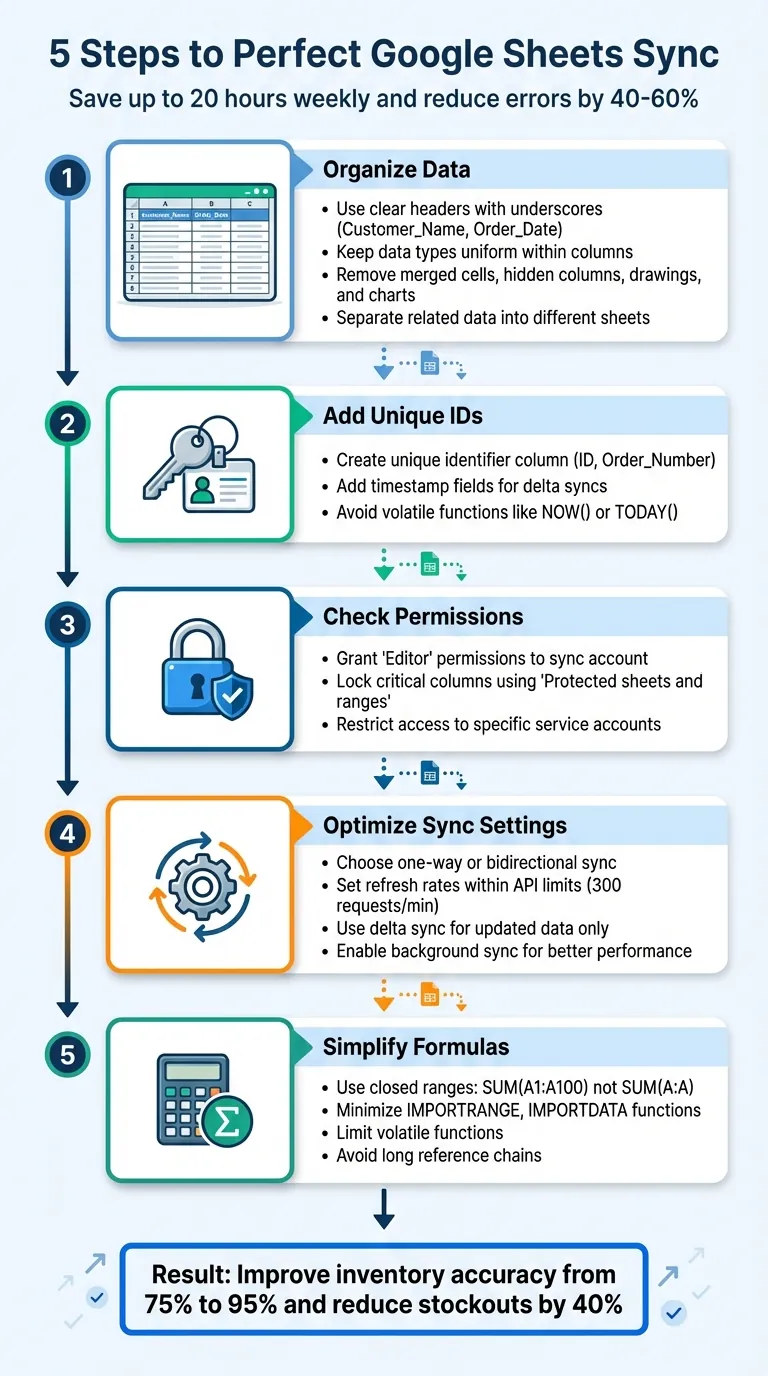
5-Step Google Sheets Real-Time Sync Setup Process
Google Sheets Integration | Create a Real-time Data Sync with Google Sheets
Preparing Your Google Sheets for Sync
Set up your data properly to avoid errors, improve sync speed, and ensure accurate results. Whether you're connecting spreadsheets to a custom mobile app built with an AI-powered app builder like Adalo or integrating with other business tools, proper preparation is the foundation of reliable real-time syncing.
Organize and Standardize Your Data
Start by using clear, consistent headers. Replace spaces or special characters in column names with underscores (e.g., Customer_Name, Order_Date). Avoid symbols like "!" or "$" to prevent mapping problems when your sync engine attempts to parse column names.
Keep data types uniform within each column. All dates should follow the same format, numbers should remain free of text, and boolean fields should stick to TRUE/FALSE values. Remove merged cells, hidden columns, drawings, and charts, as these can disrupt how sync engines process your data and cause unexpected failures during automated updates.
Organize related data into separate sheets. For example, use one sheet for "Customers" and another for "Orders" instead of combining everything into one tab. This relational setup makes it easier to connect datasets using ID columns—a structure that works particularly well when building database-driven apps that need to display related information across multiple screens. Also, clear out any empty rows and columns to streamline data transfer during the sync process.
Add Unique IDs and Timestamps
Every table should include a unique identifier column, such as ID or Order_Number. These identifiers help the sync engine track individual records and avoid conflicts when updates occur across multiple systems. Without unique IDs, you risk creating duplicate entries or overwriting the wrong records when multiple users make changes simultaneously.
"The unique key helps AppSheet synchronize changes made in the app back to the spreadsheet." – Google AppSheet Help
Add timestamp fields to enable delta syncs, which fetch only updated records, optimizing performance. This approach is especially valuable when syncing with mobile apps where bandwidth and battery life matter. However, steer clear of volatile functions like NOW() or TODAY() for timestamps. These functions recalculate with every edit, which can significantly slow down sync operations and trigger unnecessary data transfers.
For apps built with platforms like Adalo that connect directly to Google Sheets, proper timestamp implementation ensures your mobile users always see the latest data without excessive API calls that could hit rate limits.
Check Access Permissions
Ensure the sync account has the proper permissions. The user or service account running the sync must have "Editor" permissions to modify content, add data, or delete rows. During development, you can set sharing to "Anyone with the link" as "Editor", but for production, restrict access to specific service account emails or OAuth 2.0 credentials to maintain security.
Use the "Protected sheets and ranges" feature (found under the Data menu) to lock critical columns, such as those containing unique IDs or timestamps. This prevents accidental deletion of essential sync markers that your app depends on for accurate data matching. Additionally, disable permission changes by editors to ensure the sync account retains control throughout your app's lifecycle.
| Permission Role | What They Can Do | When to Use for Sync |
|---|---|---|
| Owner | Full control, including deletion and ownership transfer | Primary administrator of the sync setup |
| Editor | Add, edit, and delete content; can share the file | Necessary for bidirectional sync or automated data updates |
| Commenter | View and add comments; cannot change data | Ideal for stakeholders providing feedback without altering content |
| Viewer | Only view content; cannot edit or comment | Suitable for read-only syncs or external reporting tools |
Best Practices for Sync Configuration
Getting your sync settings right is essential for balancing the need for real-time updates with system performance and API usage limits. Once your Google Sheet is properly set up, these tips can help you fine-tune sync settings for better data performance across your web and mobile applications.
Select the Right Sync Method
The first step is choosing between one-way and bidirectional sync. One-way sync is ideal for setups like reporting dashboards, where data flows in just one direction—from your spreadsheet to your app or vice versa. On the other hand, bidirectional sync is necessary when updates need to move between your app and the spreadsheet in both directions, such as when field teams update records on mobile devices that need to reflect in your master spreadsheet.
AI-assisted app builders can simplify this decision by offering automated schema detection and real-time bidirectional sync without requiring API expertise. Adalo's direct Google Sheets integration, for example, handles the complexity of two-way data flow automatically, letting you focus on your app's user experience rather than sync mechanics. For developers who need more control over how data is transformed, low-code options like External Collections let you work directly with REST APIs—though this approach requires some knowledge of JSON formatting.
Be mindful of data limits when planning your sync strategy. Google Sheets can handle up to 100,000 rows, but performance tends to drop significantly with larger datasets or when complex formulas are involved. If your app needs to scale beyond these limits, consider using a dedicated database with no record caps—platforms with unlimited database storage can handle growth without forcing you to restructure your data architecture.
Set Appropriate Refresh Rates
Your sync frequency should align with Google Sheets API quota limits, which cap at 300 read and 300 write requests per minute per project. While instant sync provides real-time updates, it uses more resources like battery, bandwidth, and server capacity. If conserving resources is a priority, try delayed sync, which queues updates for later, or syncing on app start, so users begin with the latest data without constant updates running in the background.
To optimize, use delta sync by checking the LastModifiedTime property of your Google Sheet. This ensures data transfers only happen when changes are detected, dramatically reducing unnecessary API calls. In situations where many users are active at the same time—like logging tasks during a busy shift—stagger sync times to avoid overwhelming API limits. If you encounter 429: Too many requests errors, implement a truncated exponential backoff algorithm to retry requests at increasing intervals (1 second, then 2 seconds, then 4 seconds, and so on).
Another way to save on API calls is by batching updates. Combine multiple updates into one write request and apply security filters to sync only the rows a user needs. This cuts down on payload size and processing time, which is especially important for mobile apps where data transfer costs and battery life matter to users.
Reduce Formula Complexity
Complex formulas can create performance roadblocks since Google Sheets recalculates all affected formulas whenever there's an update. To avoid delays, use closed range references like SUM(A1:A100) instead of open ranges like SUM(A:A), which force the system to scan unnecessary rows, including empty ones that add processing overhead without contributing useful data.
Minimize the use of functions like IMPORTRANGE, IMPORTDATA, IMPORTXML, and GOOGLEFINANCE. These functions require additional data fetching from external sources, which can slow down syncing and introduce unpredictable delays. Similarly, limit volatile functions such as TODAY(), NOW(), RAND(), and RANDBETWEEN(). These trigger full recalculations whenever the sheet is edited, creating a cascade of unnecessary processing.
A better approach is to use a volatile function in one cell (e.g., TODAY() in $A$1) and reference that cell elsewhere to reduce redundant recalculations. This technique maintains the functionality you need while minimizing the performance impact on your sync operations.
Finally, steer clear of long reference chains where one cell depends on another in sequence (e.g., A3 depends on A2, which depends on A1). These force sequential recalculations and can slow things down considerably. For static or historical data, consider copying and pasting values manually instead of relying on functions like IMPORTRANGE. This ensures that data fetching happens locally, speeding up performance for your connected applications.
Maintaining Data Accuracy and Resolving Conflicts
To keep your data accurate and avoid conflicts, it's crucial to organize it properly and configure your sync settings carefully. A good starting point is to assign a unique identifier to every record—like an Order Number, ID, or Email—to prevent duplicate entries during updates. When your sync tool is set to match fields using these unique identifiers, it can update existing rows or add new ones when no match is found.
This approach ensures clean, reliable data without duplicates that could disrupt operations or confuse users. For example, a multi-location boutique retailer struggling with frequent stockouts solved their issue by adopting a real-time sync app with proper field matching. The result? A 40% drop in stockouts and an improvement in inventory accuracy from 75% to 95%. Clearly, solid field matching lays the foundation for smooth, conflict-free syncing.
Set Up Field Matching Rules
The first step is to designate a unique column in your Google Sheet to act as the matching field. This could be something like an automatically generated ID or an email address—anything that's guaranteed to be unique for each row. Then, configure your sync settings to use this column as the primary identifier. Many sync tools simplify this process with templates like "Update Existing Rows and Append New Rows," which take care of matching and updating records automatically.
When building mobile apps that sync with Google Sheets, proper field matching becomes even more critical. Users making changes on their phones while others update the spreadsheet directly creates multiple potential conflict points. Platforms designed for native app development typically handle this complexity behind the scenes, but you still need to ensure your spreadsheet structure supports reliable matching.
Another key detail? Keep your data types consistent—dates should stay as dates, and numbers should remain numeric. Misaligned data types can cause matching errors or sync failures that are difficult to diagnose after the fact.
Monitor Sync Logs and Errors
Once you've set up field matching, the next step is to keep an eye on your sync logs. Regular monitoring helps you spot and fix errors early before they snowball into bigger issues that affect your users. Watch for common errors like:
- 403 Forbidden: This usually happens when the app user doesn't have the right permissions for the Google Sheet.
- Unable to update row: Often caused by complex formulas or external data fetches that lead to timeouts.
- Duplicate request in progress: A result of network lag causing a client to resubmit the same request.
- This change cannot be applied: Occurs when app definitions change while local changes are still queued.
Here's a quick reference table for troubleshooting:
| Sync Error | Common Cause | Recommended Solution |
|---|---|---|
| 403 Forbidden | Missing sheet permissions | Verify the app user has explicit access to the sheet. |
| Unable to update row | Complex formulas causing timeouts | Simplify formulas and avoid external data fetches. |
| Duplicate request in progress | Network lag | Wait for the original request to finish. Check the Performance Profile. |
| This change cannot be applied | Queued local changes after app update | Use Recovery Mode to save changes in a JSON file. |
For instance, a regional HVAC company managing over 200 service calls each week saved 15 hours weekly by eliminating manual data entry errors after switching to a properly monitored mobile app sync system. If you notice recurring errors, addressing them promptly can save significant time and improve efficiency across your entire operation.
Handle Connection Issues
Even with everything set up perfectly, external factors like internet connectivity can still throw a wrench in your sync process. This is especially true for mobile apps used in the field—delivery drivers, service technicians, and sales reps often work in areas with spotty coverage. To minimize disruptions, consider enabling delayed sync. This feature queues updates locally when the connection is unstable, allowing users to trigger a full sync once connectivity is restored. This way, you avoid data loss during temporary network outages.
Another helpful feature is Background Sync, which automatically fetches the latest updates from other users at regular intervals—typically every 30 minutes. By processing local changes in the exact order they were made, this feature ensures your data remains consistent even when multiple users are making changes simultaneously. If a conflict arises during a sync, the system can move the data to a recovery folder in JSON format, so you can review and manually apply changes to your spreadsheet.
For users in areas with unreliable internet, these options ensure that no data gets lost, even if real-time sync isn't always possible. Native mobile apps built with platforms like Adalo can leverage device-level caching and offline capabilities to maintain functionality even when connectivity drops—a significant advantage over web-based solutions that require constant internet access.
Improving Sync Performance
Speeding up sync processes starts with fine-tuning your spreadsheet and network setup. For spreadsheets, use closed ranges like A1:B100 to avoid scanning unnecessary empty rows or columns. Eliminating these unused spaces reduces the workload during sync operations and can cut sync times dramatically for large sheets.
If your sheet relies on volatile functions like TODAY() or NOW(), switch to absolute references to prevent constant recalculations. These adjustments become increasingly important as your dataset grows—performance can start to lag once you pass 100,000 rows, which is Google Sheets' practical limit for responsive performance.
Your network connection also plays a significant role in sync speed. A wired Ethernet connection offers far more stability and faster speeds than Wi-Fi, especially in environments with interference or heavy traffic. If Wi-Fi is your only option, connect to the 5GHz band to minimize interference from other devices and networks. In corporate settings, proxy servers can sometimes block Google Drive or Sheets. If you encounter issues, request a proxy exception for these domains.
Together, these changes lay a solid foundation for better sync performance across all your connected applications.
Use Background Sync
Once your spreadsheet and network are optimized, enabling background sync can take things a step further. Background sync processes updates in the background, reducing the time users spend waiting for data to load. This approach improves the "perceived speed" of your app, making it feel faster because sync operations no longer block users from interacting with the interface.
Background sync is especially helpful for apps with frequent data updates or for users in areas with spotty connectivity. Local changes are queued and synced automatically when the connection stabilizes, ensuring no data is lost even during temporary outages. This capability is particularly valuable for native mobile apps that need to function reliably in real-world conditions.
To maximize background sync efficiency:
- Turn on Automatic Updates so sync runs when the app starts, when data changes are queued, or when local data has been idle for more than 30 minutes.
- Enable Delayed Sync for offline users. This queues updates locally and processes them when connectivity is restored.
- Use Delta Sync to update only the tables that changed since the last sync, cutting down on data transfer volumes significantly.
Keep in mind that background sync may run more frequently than manual sync, so monitor your API usage to avoid exceeding Google Sheets' limit of 300 requests per minute per project. Apps built on platforms with robust infrastructure—like Adalo, which processes over 20 million daily requests with 99%+ uptime—can handle high-frequency sync operations reliably.
Choose Fast Data Connections
The quality of your connection directly impacts sync speed and reliability. For workstations, wired Ethernet provides the most reliable and interference-free setup. If Ethernet isn't available, position your device close to the router and connect to the 5GHz Wi-Fi band for better performance. Mobile users can sometimes bypass network issues by switching to mobile data, especially if local proxies are causing delays or blocking syncs.
On the API side, efficiency matters significantly. Keep payloads under 2 MB, request only the fields you need using the fields parameter, and enable Gzip compression with the Accept-Encoding: gzip header. These optimizations reduce data transfer times and help you stay within rate limits.
If you encounter HTTP 429 rate-limit errors, use exponential backoff to retry requests with increasing delays (e.g., 1 second, 2 seconds, 4 seconds). Remember, Google Sheets has a 180-second timeout for a single API request, so make sure your calls are optimized to complete well within that window.
Once your connections and API settings are dialed in, test your setup to ensure everything runs smoothly before deploying to production.
Test with Sample Data First
Before syncing your full dataset, test your configuration with a smaller, representative sample. Make a copy of your Google Sheet that mirrors real-world conditions, but with fewer rows to keep the testing process manageable. This approach lets you identify issues without risking your production data.
Run your sync and track its performance, looking for errors like timeouts or rate-limit warnings. Test both directions of sync if you're using bidirectional updates—add records in the spreadsheet and verify they appear in your app, then make changes in the app and confirm they sync back to the sheet.
For mobile apps, test on actual devices rather than just simulators. Network conditions, battery optimization settings, and device-specific behaviors can all affect sync performance in ways that don't show up in development environments. Once you're confident in the results, roll out your sync setup to your production data with minimal risk of disruption.
Building Apps with Google Sheets Sync
When you need to turn your spreadsheet data into a functional mobile or web application, choosing the right platform matters significantly. The goal is to maintain real-time sync while delivering a polished user experience that works reliably across devices.
Adalo, an AI-powered app builder, offers direct Google Sheets integration that simplifies this process considerably. With Magic Start, you can describe your app concept—"I need an inventory tracking app that syncs with my Google Sheet"—and the AI generates your database structure, screens, and user flows automatically. What used to take days of planning happens in minutes, and the resulting app publishes to iOS, Android, and web from a single codebase.
This approach is particularly valuable for teams already using Google Sheets as their data backbone. Rather than migrating to a new database system, you can build a native mobile interface on top of your existing spreadsheet workflows. Field teams get a polished app experience while office staff continue working in the familiar spreadsheet environment.
At $36/month, Adalo provides native iOS and Android apps with App Store publishing—a capability that typically requires significantly higher investment on other platforms. Unlike solutions that charge based on usage (actions, records, or workload units), Adalo's pricing includes unlimited database records and no caps on actions or users, making costs predictable as your app scales.
Conclusion
Key Takeaways
Achieving real-time Google Sheets sync revolves around three main factors: a clean data structure, efficient configuration, and consistent monitoring. Start by organizing your spreadsheet with clear headers, unique IDs, and uniform data types—this creates a solid foundation for syncing. Simplify formulas, remove unnecessary rows and columns, and use closed ranges to minimize data processing overhead.
Configuration plays a critical role in long-term success. Keep an eye on your API quota and use exponential backoff to handle 429: Too many requests errors gracefully. Background sync can help mask latency issues for users, while security filters ensure only the necessary data is transferred. Companies that integrate mobile validation and automated workflows into their sync processes have been able to lower data entry errors by 40-60%.
Ongoing monitoring is essential for smooth operation. Review sync logs regularly for errors, confirm that field matching rules are accurate, and test changes with sample data before applying them in production.
Next Steps
To put these practices into action, start with a sample sync setup. Edit a few rows in your Google Sheet and verify that the updates reflect in your app. Then, make changes in the app and confirm they sync back to the sheet. This bidirectional testing catches configuration issues before they affect real users.
If your project involves building a mobile app that relies on spreadsheet data, Adalo provides direct Google Sheets integration along with AI-assisted building that can generate your app foundation from a simple description. The platform supports sync workflows and allows you to publish to iOS, Android, and web from a single codebase—handling the complex App Store submission process so you can focus on your app's features.
Once your sync is live, monitor its performance during the first few weeks. Keep an eye on API usage, check for timeout errors, and tweak refresh rates or data filters as needed. This will help you stay within Google's quotas while ensuring your sync remains responsive for users.
Related Blog Posts
- How to Create An App using Google Sheets as the actual Database?
- Real-Time Data Sync for No-Code Apps
- Sync Task Data Between Airtable and Sheets
- How to Sync Data Across Web and Mobile Apps
FAQ
Why choose Adalo over other app building solutions?
Adalo is an AI-powered app builder that creates true native iOS and Android apps from a single codebase. Unlike web wrappers or PWA-only solutions, it compiles to native code and publishes directly to both the Apple App Store and Google Play Store. At $36/month with unlimited database records and no usage-based charges, it offers predictable pricing that doesn't scale with your success.
What's the fastest way to build and publish an app to the App Store?
Adalo's AI Builder with Magic Start generates complete app foundations from text descriptions—describe your app concept and it creates your database, screens, and logic automatically. Combined with the drag-and-drop interface and streamlined App Store submission process, you can go from idea to published app in days rather than months.
Can I sync Google Sheets data with a mobile app in real-time?
Yes. Adalo provides direct Google Sheets integration that enables real-time bidirectional sync between your spreadsheet and native mobile apps. Updates made in the app reflect in your sheet, and changes to the spreadsheet appear in the app—keeping your team synchronized whether they're working on mobile devices or in the spreadsheet directly.
How do I prevent data conflicts when syncing Google Sheets?
Assign unique identifiers to every record (Order Number, ID, or Email) and configure your sync settings to match fields using these identifiers. Add timestamp columns to enable delta syncs that fetch only updated records, reducing conflicts and improving performance.
What causes slow sync performance with Google Sheets?
Slow performance typically results from complex formulas, volatile functions like TODAY() or NOW(), open-ended ranges like SUM(A:A), and datasets exceeding 100,000 rows. Simplifying formulas, using closed ranges like A1:A100, and removing unnecessary empty rows can significantly improve sync speed.
How do I handle '429: Too many requests' errors?
Implement exponential backoff to retry requests with increasing delays (1 second, 2 seconds, 4 seconds). Also consider batching updates into single requests, using delta sync to transfer only changed data, and staggering sync times when many users are active simultaneously.
What happens if my app loses internet during a sync?
Enable delayed sync to queue updates locally when connectivity is unstable. Users can trigger a full sync once the connection is restored. Background sync can also fetch updates at regular intervals and process local changes in order, ensuring data consistency even with unreliable internet.
How much does it cost to build a Google Sheets sync app?
With Adalo at $36/month, you get native iOS and Android apps with Google Sheets integration, unlimited database records, and App Store publishing included. Unlike competitors that charge $60-189/month for similar capabilities or add usage-based fees, Adalo's pricing remains predictable as your app scales.
Do I need coding experience to build a sync app?
No coding required. Adalo's AI-assisted building and drag-and-drop interface let you create database-driven apps by describing what you want. Magic Add lets you add features by typing natural language descriptions, and the platform handles the technical complexity of Google Sheets integration automatically.
Can I publish my Google Sheets app to both iOS and Android?
Yes. Adalo builds native apps for both platforms from a single codebase and handles the App Store and Play Store submission process. You design once and publish everywhere—web, iOS, and Android—without maintaining separate codebases or learning platform-specific development.
Turn your data into a native app with Adalo's Google Sheets to app tools.