Top 5 Map API Errors and Fixes
Map API errors can derail your app's most critical features—turning location tracking, address searches, and real-time navigation into frustrating dead ends. This guide breaks down the five most common Google Maps API errors and provides step-by-step fixes to get your maps working again.
One way to simplify map integration is using Adalo—a no-code app builder for database-driven web apps and native iOS and Android apps—one version across all three platforms, published to the Apple App Store and Google Play. Adalo's built-in map components handle API key configuration automatically across platforms, eliminating common errors like mismatched settings between iOS and Android builds.
Whether you're debugging a MissingKeyMapError or troubleshooting geolocation permissions, these fixes will help you launch location-based features faster and reach users across web and mobile app stores.
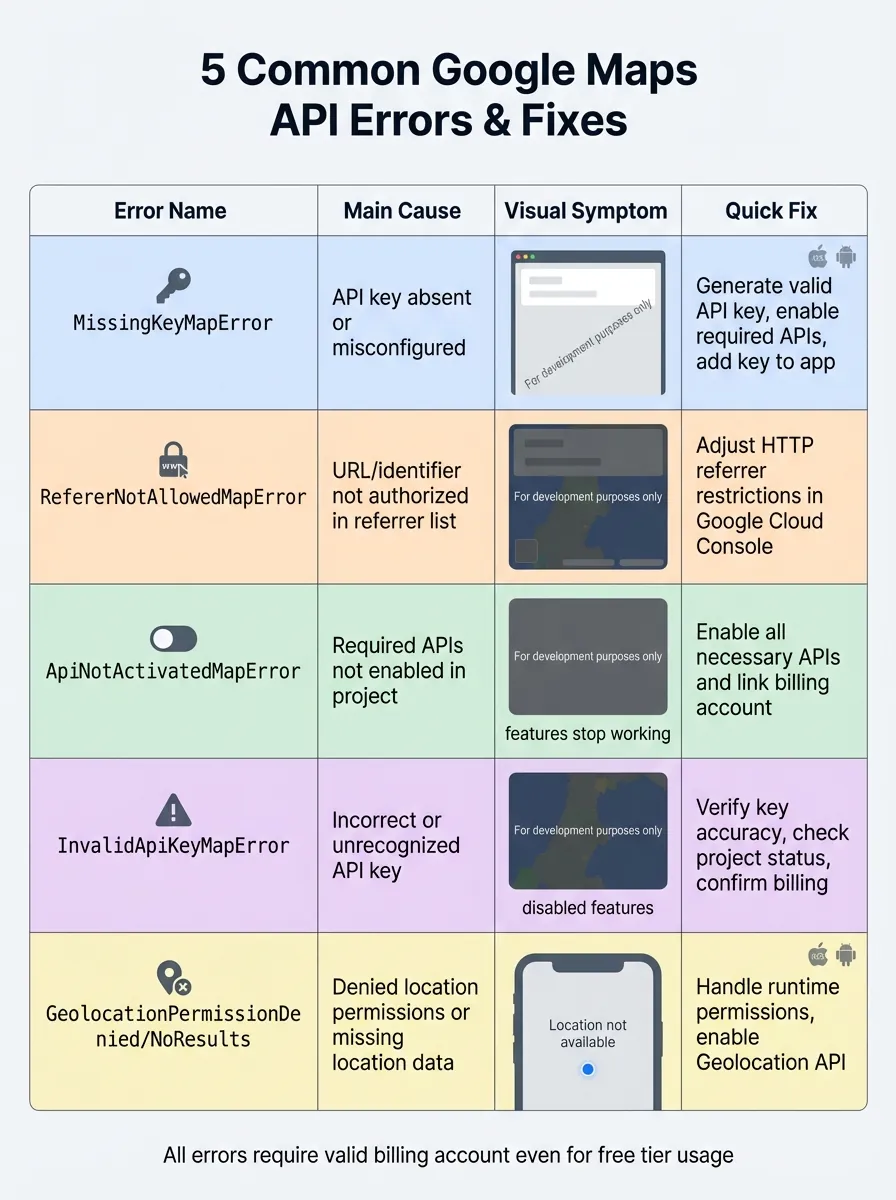
Adding a map to your app can lead to frustrating errors if configurations aren't set up correctly. From missing API keys to restricted access, these issues often result in blank maps, watermarks, or broken features. Here's a quick breakdown of the five most common Google Maps API errors and their fixes:
- MissingKeyMapError: Caused by absent or misconfigured API keys. Fix it by generating a valid API key, enabling required APIs, and adding the key to your app.
- RefererNotAllowedMapError: Happens when your app's URL or identifier isn't authorized. Adjust HTTP referrer restrictions in the Google Cloud Console to resolve this.
- ApiNotActivatedMapError: Occurs when the required APIs aren't enabled. Activate all necessary APIs and link a billing account.
- InvalidApiKeyMapError: Indicates an incorrect or unrecognized API key. Double-check the key, project settings, and billing account.
- GeolocationPermissionDenied/NoResults: Results from denied location permissions or missing location data. Ensure runtime permissions are handled and APIs like Geolocation are enabled.
These errors can disrupt key app features like location tracking and geocoding. Fixing them quickly ensures a smooth user experience. Want the full details? Read on for step-by-step solutions.
5 Common Google Maps API Errors: Causes, Symptoms, and Quick Fixes
Why Map Errors Matter for App Builders
Map functionality is central to countless mobile applications—from delivery tracking and ride-sharing to real estate browsing and fitness apps. When Google Maps API errors occur, they don't just display an error message; they break core user experiences that your customers depend on.
For app builders using platforms like Adalo—a no-code app builder for database-driven web apps and native iOS and Android apps—one version across all three platforms, published to the Apple App Store and Google Play—understanding these errors is crucial. While Adalo handles much of the complexity of map integration through its built-in components, knowing how to troubleshoot API-level issues ensures your location-based features work flawlessly across all platforms.
The good news: most map API errors stem from configuration issues rather than code problems. Once you understand the root causes, fixes are typically straightforward.
1. MissingKeyMapError
Cause of the Error
The MissingKeyMapError happens when an API key is either absent or improperly configured in your app. This could mean the key is missing from your AndroidManifest.xml file or not set using GMSServices on iOS. Since June 22, 2016, Google has required every Maps API request to include a valid API key tied to a project with billing enabled—even for free-tier users. Without this, Google can't authenticate your request, and the map won't load.
Symptoms or Impact on iOS/Android Apps
When this error occurs, your app's map might appear as a blank, gray box or show a watermark indicating it's in development mode. Features like location picking, geocoding, and real-time tracking won't work. Additionally, you'll see this error in the console:
"Google Maps JavaScript API error: MissingKeyMapError."
This can make the app seem broken to users, potentially leading to frustration and negative reviews.
Step-by-Step Fix
-
Generate and Configure Your API Key:
Go to the Google Cloud Console and navigate to the "Credentials" page. Create a new API key and ensure your project has billing enabled. -
Enable Required APIs:
Activate the APIs specific to your platform:- Maps JavaScript API (for web or hybrid apps)
- Maps SDK for Android
- Maps SDK for iOS
-
Properly Implement the Key:
-
For web or WebView: Add the key as a parameter in your script tag:
<script src="https://maps.googleapis.com/maps/api/js?key=YOUR_API_KEY&callback=initMap"></script> -
For Android: Include the API key in your
AndroidManifest.xmlfile within a<meta-data>tag inside the<application>element. -
For iOS: Set the key in your
AppDelegatefile using:GMSServices.provideAPIKey("YOUR_API_KEY")
-
For web or WebView: Add the key as a parameter in your script tag:
-
Verify Your Configuration:
Use the Google Maps Platform API Checker Chrome extension or check the Network tab in your browser to confirm the key is being sent with API requests. If the issue persists, temporarily disable key restrictions (like IP addresses or Bundle IDs) to determine if the problem lies with the restrictions or the key itself.
Up next, we'll cover the RefererNotAllowedMapError and how to resolve it.
2. RefererNotAllowedMapError
Cause of the Error
The RefererNotAllowedMapError happens when the URL or identifier trying to load the Maps JavaScript API isn't included in the list of authorized referrers for your API key in the Google Cloud Console. This is a frequent issue in hybrid mobile apps built with frameworks like Ionic or Cordova, as these apps often run on the file:// protocol.
It can also arise if the API key is configured with the wrong restriction type, such as using an IP address restriction instead of HTTP referrers. Additionally, in iOS or Android apps using WebViews, the rendering engine may strip the Referer header for privacy reasons, causing failures when website restrictions are applied.
Symptoms or Impact on iOS/Android Apps
When this error occurs, the map may load with a darkened or inverted appearance and display a "for development purposes only" watermark. While technically loaded, the map becomes unusable for users. The error message Google Maps API error: RefererNotAllowedMapError typically appears in the JavaScript console, but in mobile apps, it won't display directly on the device.
Instead, you'll need to use Remote Debugging tools like Chrome DevTools (Android) or Safari Web Inspector (iOS) to view the error in the console. Below is a clear guide to resolving this issue.
Step-by-Step Fix
- Log in to the Google Cloud Console and navigate to APIs & Services > Credentials to edit your API key.
- Under "Application restrictions", choose HTTP referrers (web sites).
- If your app uses the
file://protocol:- For Android, add:
__file_url__//android_asset/* - For iOS, add:
__file_url__//var/containers/*
- For Android, add:
- Replace
file:/with__file_url__in the key restrictions forfile://referers. - For standard web-based mobile sites, use wildcards like
*.yourdomain.com/*to include all subdomains and paths. - Ensure the Maps JavaScript API, Geocoding API, and Places API are enabled in the "API restrictions" section.
- Save your changes and allow at least 5 minutes for them to propagate globally.
- Clear your app or browser cache to prevent loading cached errors.
| Platform/Environment | Restriction Type | Recommended Format |
|---|---|---|
| Standard Website | HTTP Referrers | *.example.com/* |
| iOS/Android Hybrid | HTTP Referrers | __file_url__//var/containers/* (iOS) or __file_url__//android_asset/* (Android) |
| Native iOS | iOS Apps | Bundle ID (e.g., com.company.appname) |
| Native Android | Android Apps | Package Name + SHA-1 Fingerprint |
3. ApiNotActivatedMapError
Cause of the Error
The ApiNotActivatedMapError pops up when your API key is valid, but the specific Google Maps service you're trying to use hasn't been activated in your Google Cloud Console project. Since Google operates on a pay-as-you-go model, you need to enable the required APIs and connect a billing account to proceed.
A common oversight is enabling the Maps JavaScript API but forgetting to activate the Maps SDK for Android or iOS. Even if you're within the free usage limits, this error can still occur if your billing account is missing or inactive.
Symptoms or Impact on iOS/Android Apps
When this error strikes, your app's map might show up as a blank or darkened area with a "for development purposes only" watermark. Features like address searches, distance calculations, or "near me" functions will stop working. You'll also notice the error logged in the browser's JavaScript console or in remote debugging logs for iOS and Android apps.
Step-by-Step Fix
- Log in to Google Cloud Console: Head to Google Cloud Console and select your project.
- Enable Required APIs: Navigate to APIs & Services > Library, search for the following APIs, and click Enable for each:
- Maps JavaScript API
- Maps SDK for Android
- Maps SDK for iOS
- Geocoding API
- Places API
- Set Up Billing: Go to the Billing section and link your billing account using a valid credit card.
- Check API Key Restrictions: Under Credentials, select your API key and make sure its restrictions allow access to the newly enabled SDKs.
- Wait and Restart: Allow about 5 minutes for the changes to take effect, then restart your app or clear your cache.
API/SDK Requirements by Platform
| Platform | Required API/SDK |
|---|---|
| Web Applications | Maps JavaScript API |
| Android Apps | Maps SDK for Android |
| iOS Apps | Maps SDK for iOS |
| All Platforms (Features) | Geocoding API, Places API, Geolocation API |
4. InvalidApiKeyMapError
Cause of the Error
The InvalidApiKeyMapError occurs when Google's servers fail to recognize the API key used in your app. Unlike restriction-related issues, this error indicates that the key itself is either incorrect or unrecognized by the system. Common causes include typos while copying the key, using a key from a deleted Google Cloud project, or attempting to use a newly created key before it has fully propagated (this process typically takes 5-10 minutes).
Symptoms or Impact on iOS/Android Apps
When this error pops up, you'll notice a darkened map or a negative Street View image with a "for development purposes only" watermark. On web platforms, the JavaScript console will clearly display Google Maps JavaScript API error: InvalidKeyMapError. For Android developers, Logcat will show the error java.io.IOException: Server returned: 3, while iOS developers can find the InvalidKeyMapError message in the web inspector.
This error not only darkens the map but also disables features like address searches and location pins.
Step-by-Step Fix
- Double-check your API key by retrieving it from Google Cloud Console > Credentials and comparing it character-by-character with the one in your app's code. Even a small typo can trigger this error.
- Ensure your Google Cloud project is active and hasn't been deleted.
- Go to APIs & Services > Library and confirm that "Maps SDK for Android" and "Maps SDK for iOS" are enabled.
- Verify that your project has a valid billing account linked. A payment method is required even if you're within the free tier.
- If you've just created a new key, allow 5-10 minutes for it to propagate before testing it again.
The table below summarizes the required configurations for each platform:
| Platform | Required Configuration | Where to Verify |
|---|---|---|
| Android | Package Name & SHA-1 Fingerprint | AndroidManifest.xml and Key Restrictions in Cloud Console |
| iOS | Bundle Identifier (Bundle ID) | Xcode Project Settings and Key Restrictions in Cloud Console |
| Web/JS | HTTP Referrer (URL) | Browser Address Bar and Key Restrictions in Cloud Console |
How to Fix Google Maps API "RefererNotAllowedMapError" – Quick Guide to Restore Map Access
5. GeolocationPermissionDenied or NoResults
Geolocation errors can interfere with map functionality, even when API key issues aren't the problem.
What Causes the Error?
GeolocationPermissionDenied happens when your app can't access the device's location data. This could be because users explicitly deny location access when prompted, or the app doesn't request the necessary permissions. On Android, failing to include ACCESS_COARSE_LOCATION or ACCESS_FINE_LOCATION in your AndroidManifest.xml will lead to this error. Additionally, if location services are turned off in the device's settings, no app can retrieve GPS data.
NoResults (HTTP 404 notFound) occurs when the Geolocation API receives a valid request but can't determine a location. This can happen if nearby WiFi access points or cell towers aren't recognized for triangulation. Other potential causes include the Geolocation API being disabled in the Google Cloud Console or a missing valid billing account.
How It Affects iOS and Android Apps
When GeolocationPermissionDenied occurs, users may encounter a "Location not available" message. On Android, the "My Location" blue dot might not appear, and tapping the "My Location" button won't recenter the map on the user's position. Features like real-time tracking, geofencing, and transportation mode detection will also stop working.
For NoResults errors, your app will get an HTTP 404 response with the reason code notFound. You might also notice an unusually large accuracy radius in the response, indicating that the service is defaulting to IP-based geolocation because it can't identify specific WiFi access points or cell towers. The Google Geolocation API documentation explains:
The request was valid, but no results were returned.
How to Fix These Errors
Here's how to resolve each issue step by step:
Fixing GeolocationPermissionDenied:
- Make sure your app requests location permissions at runtime before trying to access location data.
- For Android (API level 23+), ensure you handle runtime permission requests properly. If users deny permissions, disable location-based features and notify them.
- Verify that
ACCESS_COARSE_LOCATIONandACCESS_FINE_LOCATIONare included in your AndroidManifest.xml. For iOS, confirm the necessary configurations are set in your property list. - Check that Location Services are enabled in the device's system settings.
Fixing NoResults:
- Enable the Geolocation API, Geocoding API, Places API, and relevant Maps SDKs for Android and iOS in the Google Cloud Console.
- Confirm that your project has a valid billing account linked, as Google requires a credit card on file even for free-tier usage.
- To troubleshoot 404 errors, set the
considerIpparameter tofalsein your request. If you still get a 404 response, it means the providedwifiAccessPointsandcellTowerscouldn't be geolocated. - Double-check your API key restrictions to ensure they align with your app's configuration.
Simplifying Map Integration with Modern App Builders
While understanding these API errors is essential for troubleshooting, modern app development platforms can significantly reduce the complexity of map integration. Adalo, an AI-powered app builder, offers built-in map components that handle much of the configuration automatically.
With Adalo's approach, you configure your Google Maps API key once in a centralized location, and the platform applies it correctly across web, iOS, and Android builds. This eliminates common errors like mismatched platform configurations or forgotten API enablements. The platform's Magic Add feature lets you add location-based functionality by describing what you need—"add a map showing nearby restaurants"—and it generates the appropriate components with proper configurations.
For apps that need to scale, Adalo's modular infrastructure supports applications with over 1 million monthly active users. Unlike web wrappers that can struggle with map rendering performance under heavy load, Adalo compiles to true native iOS and Android code, ensuring smooth map interactions even in demanding scenarios. Paid plans include unlimited database records, so location data for thousands of points of interest won't hit storage caps.
The platform also handles the complexity of publishing to both the Apple App Store and Google Play Store from a single codebase—including the proper API key configurations for each platform that often trip up developers.
Conclusion
Map API errors on iOS and Android often boil down to straightforward configuration issues. The most common culprits include missing or invalid API keys, billing account troubles, referrer restrictions, disabled APIs, and location permission errors. Addressing these issues early helps you avoid the dreaded "for development purposes only" watermark, ensures features don't fail during traffic surges, and keeps location-based functionality running smoothly for users.
To keep things on track, regularly check your Google Cloud Console to ensure all necessary APIs are enabled. Use separate API keys for iOS and Android to manage usage quotas effectively, and apply app restrictions—like package names, bundle IDs, or HTTP referrers—to safeguard your keys from misuse.
Prompt users for location permissions at the right time, such as after login, to prevent "Location not available" errors. For quota-related issues, implement exponential backoff to spread out requests and allow the server time to recover. These small adjustments can make a big difference in keeping your map features dependable and seamless across platforms.
For those building location-based apps without traditional coding, Adalo simplifies the entire process with centralized API key management and built-in location permission handling—letting you focus on features rather than configuration headaches.
Related Blog Posts
- Google Maps SDK for Android: Beginner's Guide
- How to Embed Interactive Maps in No-Code Apps
- Common API Errors in No-Code Apps
- MapKit Integration Checklist for iOS Apps
FAQ
Why choose Adalo over other app building solutions?
Adalo is an AI-powered app builder that creates true native iOS and Android apps. Unlike web wrappers, it compiles to native code and publishes directly to both the Apple App Store and Google Play Store from a single codebase—the hardest part of launching an app handled automatically.
What's the fastest way to build and publish an app to the App Store?
Adalo's drag-and-drop interface combined with AI-assisted building through Magic Start and Magic Add lets you create complete apps in hours rather than weeks. The platform handles the entire App Store submission process, so you don't need to navigate Apple's complex requirements manually.
What steps can I take to avoid map API errors in my app?
Start by verifying your API key setup—ensure the key is active, properly configured, and restricted to the appropriate domains or applications. Enable billing on your account, as most map APIs won't work without it. Set up robust error handling with retry strategies like exponential backoff to deal with rate limits or quota problems.
Why isn't my API key working even after troubleshooting?
Check four key areas: Configuration (is the key correctly set up and formatted?), Restrictions (do the IP, domain, or app-specific settings match your app?), API Access (are necessary APIs enabled in Google Cloud?), and Billing Status (is billing active and linked?). If still stuck, try regenerating the API key entirely.
Why does Google Maps API require billing, even for free-tier usage?
Google requires billing details to manage accounts effectively and curb misuse. While users get a monthly credit to offset costs, billing information tracks credit usage and applies it correctly. This setup helps Google monitor activity, prevent abuse, and help developers stay within usage limits.
How long does it take to build a map-based app?
With traditional development, map integration alone can take days of configuration. Using Adalo's built-in map components and AI-assisted building, you can have a functional location-based app in a few hours. The platform handles API key configuration across platforms automatically.
Do I need coding experience to add maps to my app?
Not with modern app builders. Adalo's visual interface lets you add map components by dragging and dropping, then configure them through simple settings panels. For more complex location features, Magic Add lets you describe what you want in plain language.
Can I publish a map-based app to both iOS and Android?
Yes. Adalo creates native apps for both platforms from a single build. You configure your Google Maps API key once, and the platform applies the correct settings for each platform's requirements—eliminating the common error of mismatched configurations between iOS and Android.
How do I handle location permissions properly in my app?
Request permissions at contextually appropriate moments—like when a user first tries to use a location feature, not immediately at app launch. Explain why you need location access before the system prompt appears. Always have fallback functionality for users who deny permissions.
What causes the "for development purposes only" watermark on maps?
This watermark appears when your API key isn't properly configured, billing isn't enabled, required APIs aren't activated, or referrer restrictions don't match your app's domain. Follow the troubleshooting steps for MissingKeyMapError, RefererNotAllowedMapError, or ApiNotActivatedMapError depending on your specific situation.